
GDS Photo Resizer 2026: 4:5 Ratio & 5:2 Sign (30-100KB)
Official India Post GDS 2026 Tool
📷 Photo (30-100 KB)
✍️ Signature (20-100 KB)
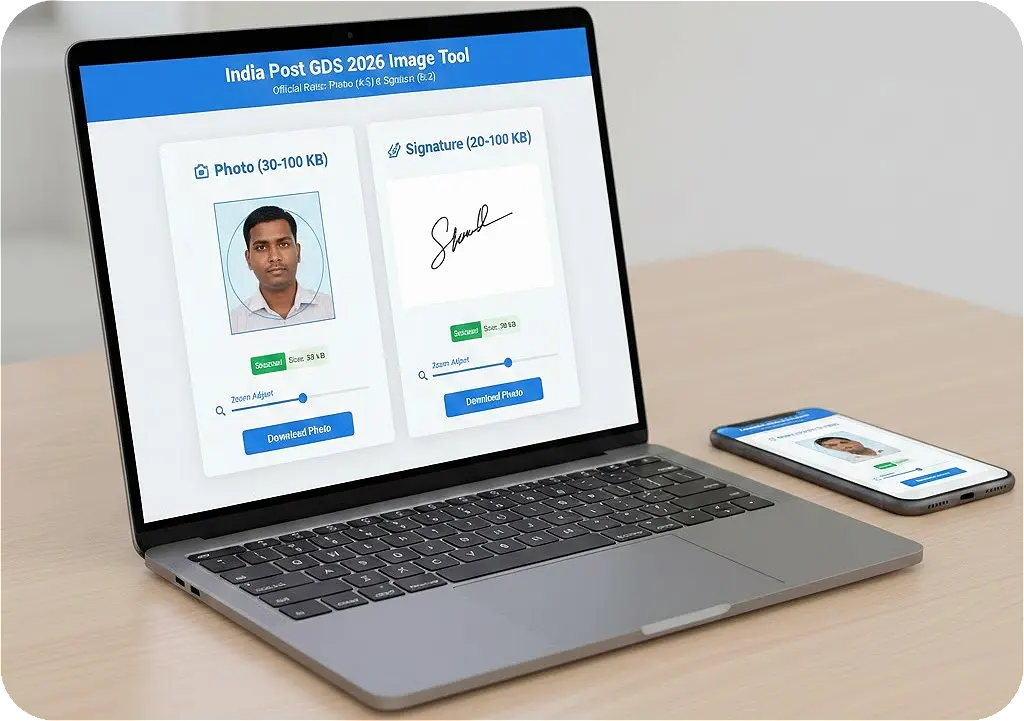
Applying for the India Post GDS (Gramin Dak Sevak) engagement is a significant milestone for many job seekers across the country. However, the path to a successful application is often blocked by stringent document upload requirements. If your image is not in the correct format, your application can be rejected instantly. Our dedicated formatting utility is designed to solve this exact problem, ensuring your documents meet the official 2026 standards with 100% accuracy.
In the latest notification for the 2026 recruitment cycle, the Department of Posts has heavily emphasized the quality and size of digital uploads. This browser-based tool eliminates the need for complex software like Photoshop, allowing you to crop, zoom, and compress your images securely from your mobile or desktop device.
Common Reasons for Application Rejection
Understanding why applications are rejected is the first step toward success. The online portal uses automated validation scripts to check every single upload. Here are the primary reasons for document failure:
- Incorrect Aspect Ratio: Many candidates mistakenly upload standard 1:1 square photos, but the portal strictly requires a 4:5 ratio for photographs.
- Blurry Signatures: If the signature is not scanned properly or if the file size is too low (below 20KB), it appears pixelated. This leads to immediate rejection during document verification.
- Face Coverage Issues: The face must occupy at least 70-80% of the photo. If you upload a full-body shot or a photo where the face is too small, it will not be accepted.
- File Format Mismatch: Only JPG or JPEG formats are allowed. Attempting to upload a PNG or PDF file is a common mistake that will trigger an upload error.
Official 2026 Image Guidelines
Refer to this table to ensure your documents align with the official standards before submitting your form.
| Document Type | Aspect Ratio | Dimensions (Pixels) | File Size (KB) |
|---|---|---|---|
| Passport Photograph | 4:5 (W:H) | 320 x 400 px | 30 KB to 100 KB |
| Signature Scan | 5:2 (W:H) | 300 x 120 px | 20 KB to 100 KB |
How to Use the Tool Step-by-Step
1. Selection and Upload
Click on the upload button in the workspace above. For your photograph, ensure the original image is clear and taken against a light background. For the signature, ensure you have signed on plain white paper with black or blue ink, strictly avoiding lined notebook paper.
2. Precision Adjustment
Once uploaded, the image will appear inside the interactive preview editor. You can drag the image with your mouse or finger to position it. Use the slider below the canvas to zoom in on the face. Remember the 80% rule: your head and shoulders should fill the majority of the box to meet the visual criteria.
3. Automatic Optimization
One of the unique features of our platform is the automatic size padder. If your signature is only 10KB, our system will intelligently inject safe bytes to push it over the minimum 20KB threshold needed to satisfy the India Post server requirements. Similarly, heavy photos are effortlessly compressed to fit under the maximum limit.
4. Final Download
Click the download button to save your formatted JPEG. We highly recommend naming the file clearly (e.g., My_GDS_Photo.jpg) so you do not get confused when selecting files during the final upload process on the official portal.
Photography Rules & Best Practices
- Lighting: There should be no harsh shadows on your face or in the background. Even, natural lighting is key.
- Eyes and Head: Both eyes must be open and looking straight at the camera lens. Your head must not be tilted in any direction.
- Attire: Wear professional or neat casual clothing. Avoid wearing uniforms or heavy accessories.
- Glasses: If you wear prescription spectacles, ensure there is no flash glare reflecting off the lenses. Tinted sunglasses are strictly prohibited.
Signature Rules for Government Forms
Do not use digital fonts or typed text to represent your signature. The portal requires a clear scan of a physical signature. Use a dark pen (Black ink is usually best for scanning readability) on a completely blank white background. Make sure there are no shadows, borders, or extra marks around the signature when you crop it in the workspace.
Why Rely on Our Formatting Platform?
- Zero Data Storage: We do not upload your personal identification documents. All processing happens entirely within your web browser, ensuring 100% privacy.
- Mobile Friendly: The tool is fully optimized for touch controls, allowing you to prepare your application from anywhere using your smartphone.
- Precise Compliance: Most generic tools only resize pixel dimensions, but our tool simultaneously focuses on hitting the exact required "File Size" range.
Frequently Asked Questions (FAQ)
Q1: My photo is only 20KB, can I upload it?
A: No, the portal requires a minimum of 30KB for photographs. By processing your photo through our tool, the file size will automatically be padded to satisfy the server's minimum limit.
Q2: Is the 4:5 ratio exactly the same as 3.5 x 4.5 cm?
A: Yes, roughly. In digital terms, maintaining a 320x400 pixel grid is the standard representation required for these specific passport dimensions.
Conclusion
Success in the GDS engagement process starts with a perfect, error-free application. By preparing your documents correctly, you eliminate the technical risks of rejection. We provide the utilities you need to seamlessly meet every official requirement, from aspect ratios to KB limits, entirely for free.
Ready to start? Upload your photo in the workspace above and get your perfectly formatted images in seconds right here on ProImageTool.