
Complete Guide: How to Resize Photo and Signature for UPSC 2026
Filling out the Union Public Service Commission (UPSC) online application form can be a stressful experience, especially when you reach the document upload section. UPSC has one of the strictest image formatting guidelines among all government exams in India. A minor mistake in pixel dimensions, file size, or ink color can lead to the immediate rejection of your application.
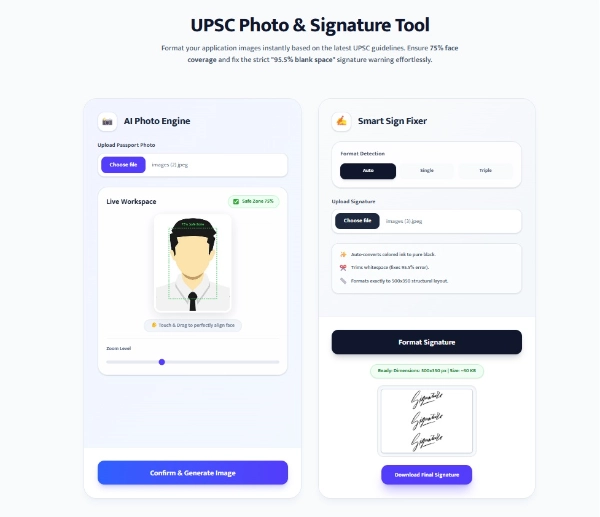
Our Smart UPSC Photo & Signature Tool is designed specifically to eliminate these technical hurdles. Whether you are struggling with the dreaded "95.5% blank space" error or figuring out how to make your face cover 75% of the photo, this tool automates everything directly inside your browser ensuring 100% data privacy.
How to Use the UPSC Image Format Tool?
Upload Your Original Image
Click on the upload button in the Photo or Signature panel. Select a clear, front-facing passport photo or a picture of your signature on white paper.
Let AI Auto-Format (or Adjust Manually)
For photos, our built-in AI will automatically detect your face and zoom it to meet the 75% coverage rule. You can also use the touch-drag feature in the live workspace to align your face within the green "Safe Zone". For signatures, the tool auto-crops white space and stacks it if required.
Confirm and Download
Once you are satisfied with the preview, click "Generate". The tool will optimize the file size (ensuring it is above 20KB) and save it exactly as a .jpg file, ready for the UPSC portal.
Detailed UPSC Photograph & Signature Guidelines (2026)
📸 Photograph Rules
- Dimensions: 350 pixels (Width) x 450 pixels (Height).
- File Size: Must be between 20 KB and 300 KB.
- Face Coverage: Your face must occupy 3/4th (approx 75%) of the total image area.
- Background: Should be plain white or a very light background.
- Format: Strictly JPG or JPEG format.
✍️ Signature Rules
- Dimensions: 500 pixels (Width) x 350 pixels (Height).
- File Size: Must be between 20 KB and 300 KB.
- Ink Color: Strictly Black ink on plain unruled white paper.
- Format Issue: UPSC sometimes requires 3 vertically stacked signatures. Our tool handles both single and triple signature formats automatically.
Frequently Asked Questions (FAQs)
Q: How do I fix the "Signature blank percentage should not be greater than 95.5%" error?
This is the most common error on the UPSC portal. It means your uploaded image has too much white paper and very little ink. Our tool fixes this by scanning your uploaded image, finding exactly where the ink is, cropping out the extra white borders, and zooming the signature to perfectly fill the 500x350 canvas.
Q: I signed using a Blue pen. Will my form be rejected?
UPSC guidelines clearly state that signatures must be in Black ink. If you upload a blue signature, it may face rejection. However, our tool has a "Smart Ink Converter" that automatically detects colored ink and turns it into pure black while keeping the paper background white.
Q: Do I need to print my Name and Date on the UPSC photo?
According to the latest UPSC instructions, printing your name and date at the bottom of the photograph is generally not mandatory anymore unless explicitly mentioned in the specific exam notification. A clear, recent photo with a plain background is accepted.
Q: Is my data safe with this tool?
Yes, absolutely. We respect your privacy. This entire application runs on Client-Side technology (inside your own web browser). Your photographs and signatures are never sent to any server.
Other Useful Formatting Tools
Preparing for multiple government examinations? Use our dedicated utilities to ensure your documents meet exact institutional requirements: